Guide for renovation firms
From the first request to sign-off.
What your firm and your renovators do, in the order you do it.
Set up once.
Your firm, your team, and a practice run.
Four steps per project.
Accept, acknowledge, fix, sign off.
Fixes in one pass.
A photo on each row you fixed, then one send.
Set up, once
Your firm and your team.
Apply with your UEN
Sign up as a firm and upload your BizFile. We check every firm against it by hand, so you hear from us by email, not instantly.
Add your renovators
From your firm’s admin page, under People. Each person gets a set-up link. Once they have verified their account, they show on your firm’s public page. A client can only link a renovator who is on your team with their account set up.
Try a practice project
Before a real one arrives, run a practice project from your firm page. Nothing in it is real, graded, shown publicly or billed. Clear it when you are done.
Take someone off the team
When a renovator leaves, take them off under People. Their record stays with the projects they worked on. Their access does not.
1. Accept
A client asks you to join.
The request arrives
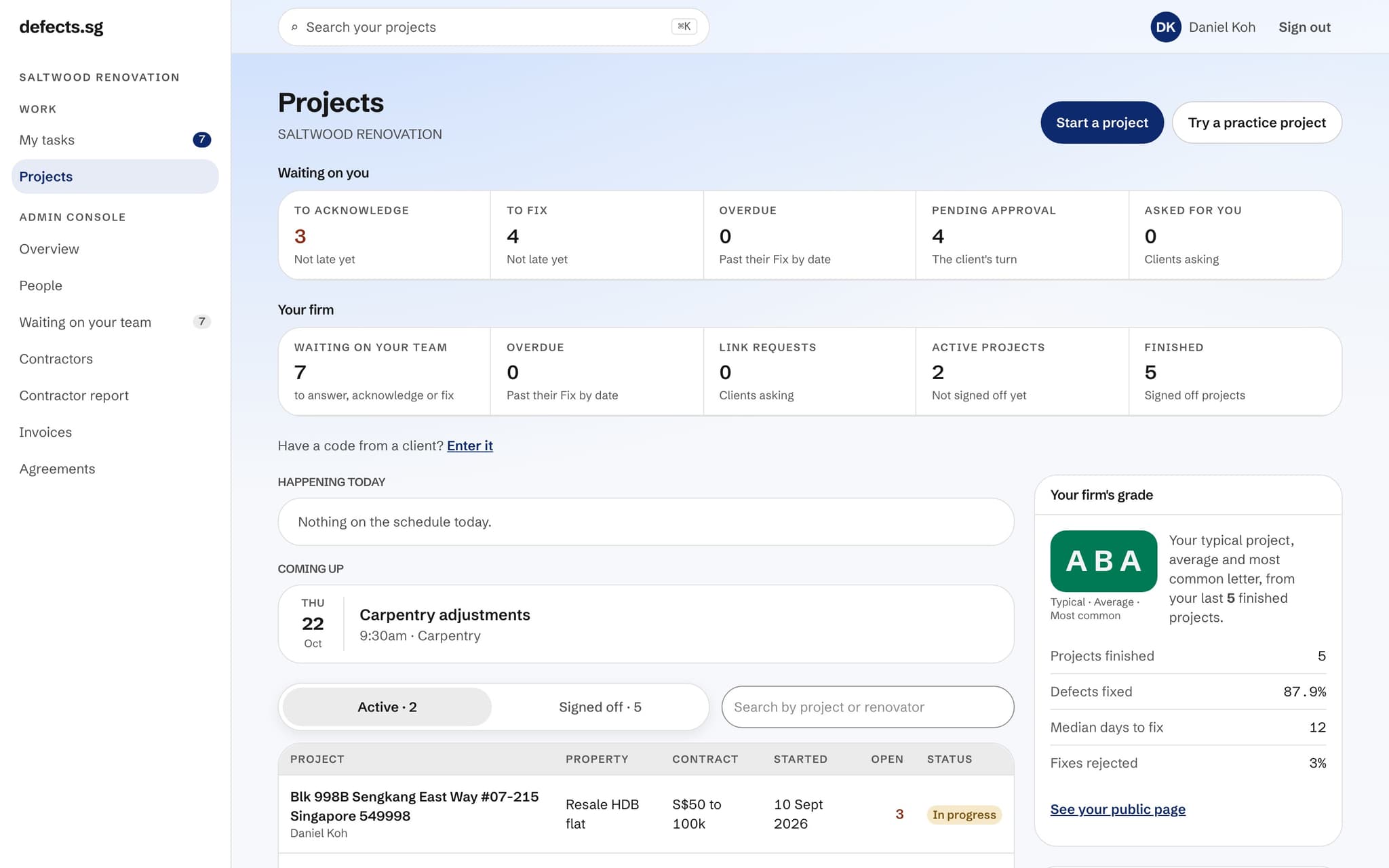
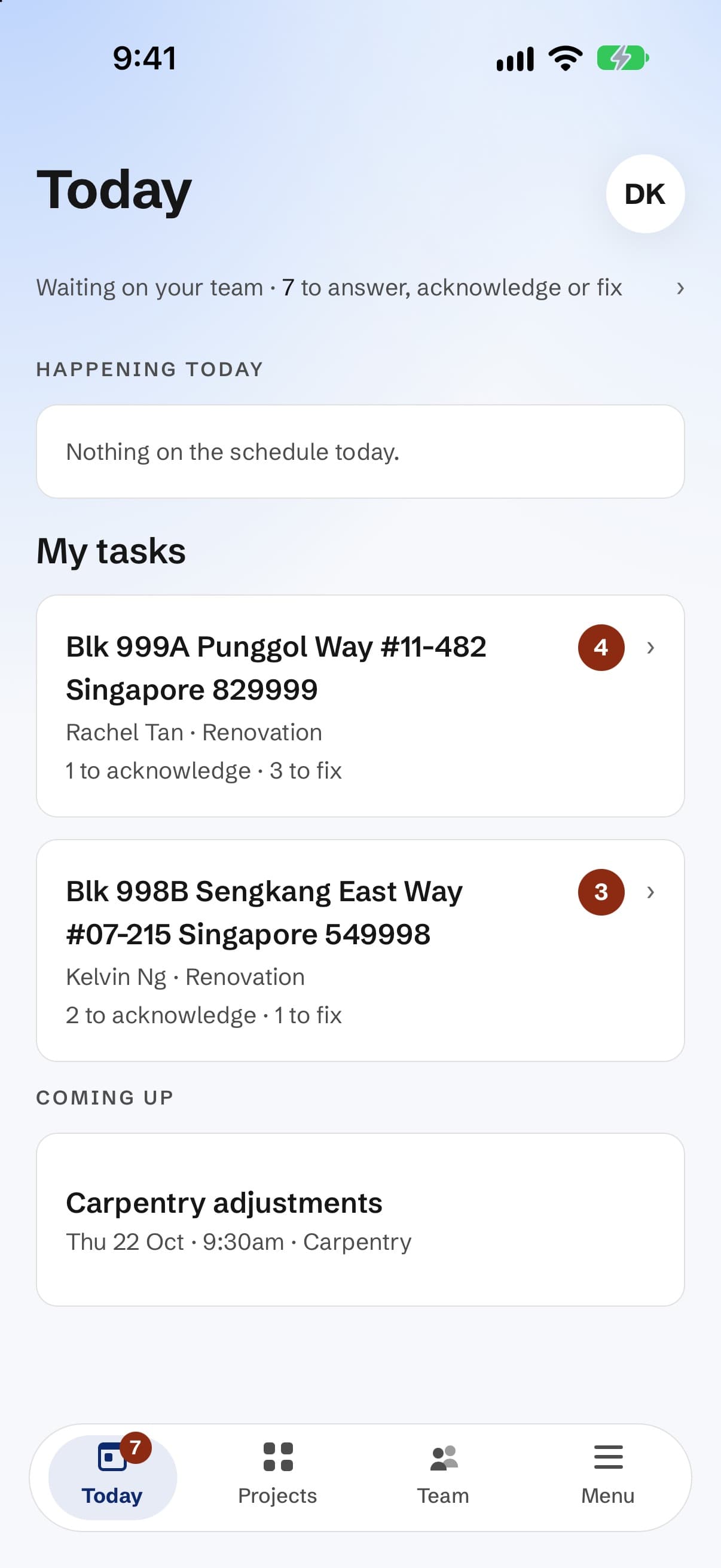
A client links your renovator to their project. It shows in your projects, and under Waiting on your team, until someone answers it.
Answer within 14 days
Tap Accept, or Not mine. A request nobody answers lapses after 14 days, and the client is free to ask someone else.
Accepting is what makes a project billable
A project is billed once: when you accept the request and its details are complete. Your firm’s owner is told at that moment. Never twice for the same project, and never for one that doesn’t start. We send you a statement each month.
2. Acknowledge
Say you’ve seen the list.
Tick what you’ve seen, then Acknowledge
One defect or the whole list. The client sees when you acknowledged each one, so do it the day the list arrives.
Give a date if you have one
A date you mean to fix it by. It is optional, but it answers the client’s first question before they ask it.
Reply on any defect
The client sees your reply. The public never does. You can’t edit or delete what they wrote.
Print a checklist per trade
On the website, each project has a checklist for every trade, with the photos: carpentry on one sheet, painting on another. Hand it to whoever is holding the tools.
3. Fix
Send the fixes in one pass.
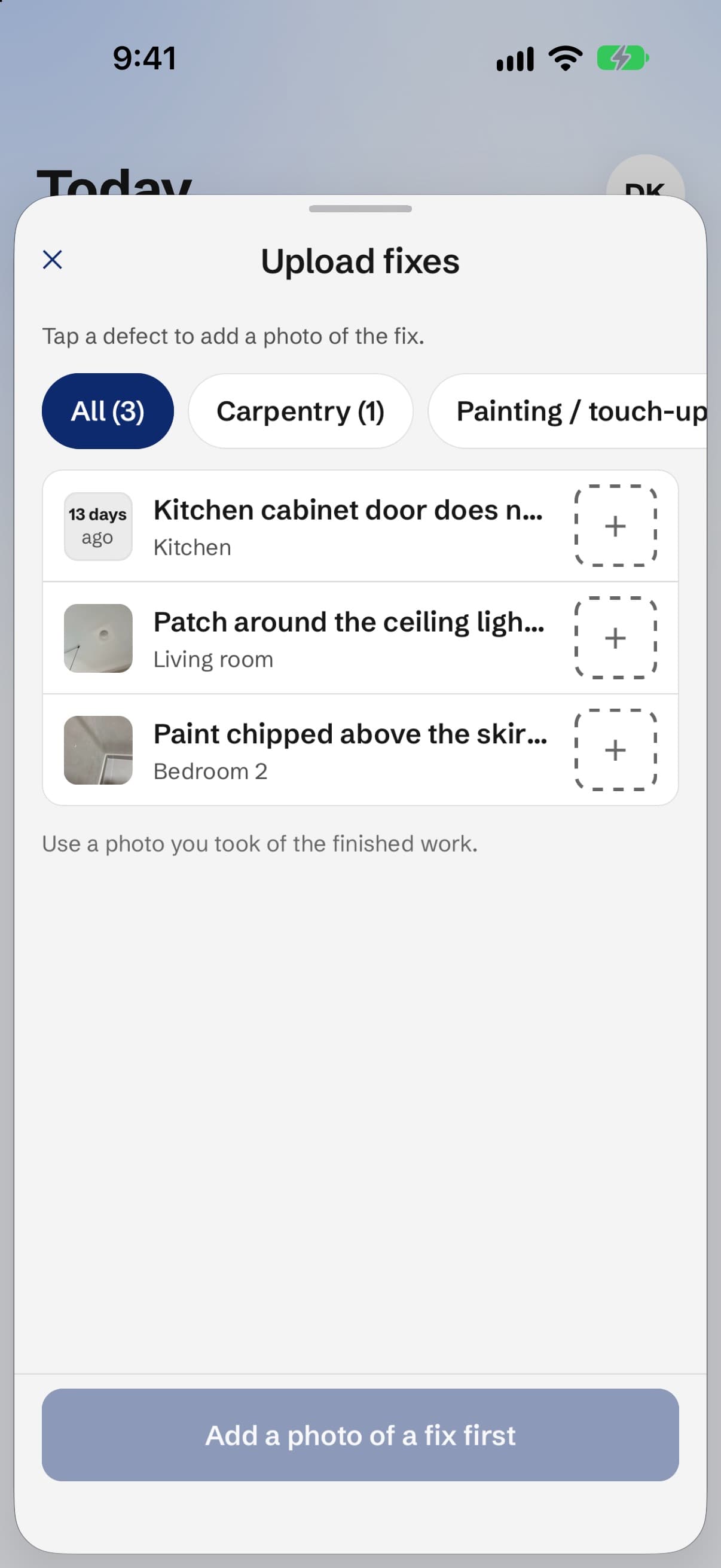
Open Upload fixes
Every open defect on the project is a row. You never leave the list to fix one.
Drop a photo on each row you fixed
On the phone, each row has its own camera. A photo on a row claims that defect fixed. A row left empty is untouched.
Send the fixes for approval
One submit sends the lot. The client accepts or sends back each fix on its own, so one item never holds up the rest. A fix the client doesn’t answer within 30 days of seeing it counts as accepted.
If one comes back
It returns with the client’s note on what is still wrong. Fix it and send it again, or ask them to settle it. A settled defect counts as resolved, and there is no penalty for settling.
Raising your own
Found something yourself?
Tap + to raise a defect
On the phone, + raises a defect and does nothing else. You fix it in Upload fixes, like any other.
Honesty is never held against you
A defect you raise and resolve is left out of your figures. Left unresolved, it counts like one the client found.
Raised it by mistake?
You can delete a defect you raised yourself, until the project is signed off. The client is emailed and notified every time, so keep it for genuine mistakes.
4. Sign off
Close the project with a date on it.
Ask the client to sign off
Once every defect is answered, tap Ask the client to sign off. Only they can sign off.
The record draws the line
It states the sign-off date, and which defects were still open then. Anything raised after it is clearly a new list.
Late defects don’t count against you
A defect sent in the last 14 days before sign-off and still open is left out of your grade. You can’t be marked down for a defect you had no real chance to fix.
Your grade updates overnight
Grades are worked out once a night, from the record: three letters from your last 10 finished projects. A grade shows from 3 projects, all three letters from 5.
Stuck? Ask us.
A screen doesn’t match this guide, or your team needs something it doesn’t have? Write to us. A person reads every message, and during the pilot, what you tell us shapes what we build next.